
Payments are configured per appointment type
Online payment is not a single setting for the whole Theravo calendar. It is enabled specifically for the appointment types that must be paid before confirmation.
Before you begin: configure the relevant appointment type first. Set up appointment types in Theravo covers audience, duration, format and booking channels.
Stripe is the currently supported payment provider. The practice connects its Stripe account, loads the available products and one-time prices, and assigns the correct price to the relevant appointment type.
This guide explains the technical setup. It does not replace legal, tax or professional advice.
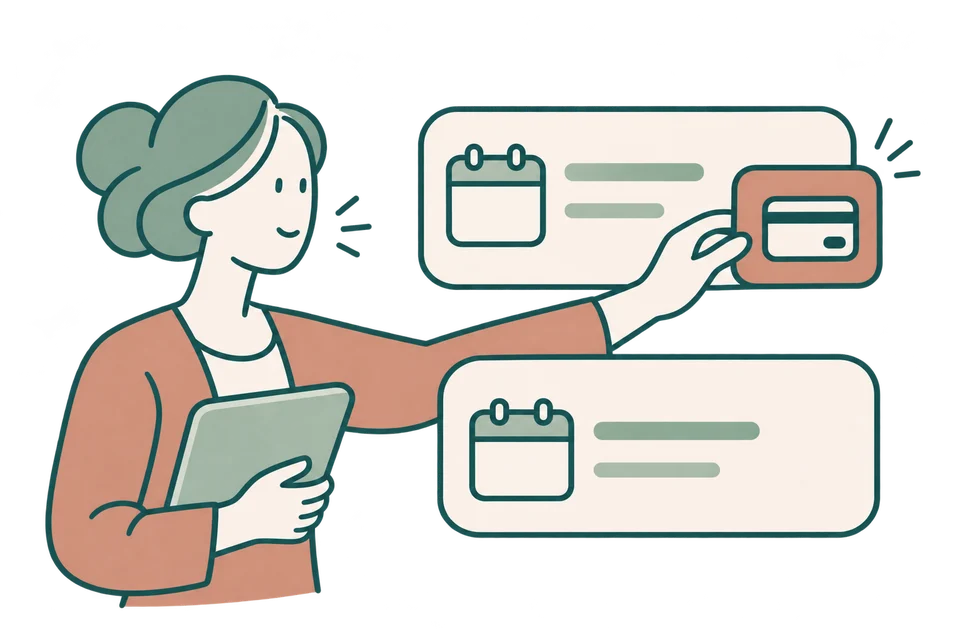
Selected appointment type
Online payment enabled
Other appointment type
No online payment required
1. Use online payment only where it fits the practice workflow
Not every session has to be paid online. Possible use cases include:
- a self-pay initial consultation
- a privately paid individual session
- a couples or family appointment
- a paid introductory consultation
- a workshop or clearly defined advisory service
For ongoing therapy, another payment process may be more suitable. The important point is that patients understand the arrangement before booking.
For every appointment type, decide:
- Should a price be displayed?
- Must payment be completed before confirmation?
- Which currency applies?
- What happens after a cancellation within the permitted deadline?
- What happens after a late cancellation?
- Should appointment credit be available?
- Would a session package be more appropriate than paying for one session at a time?
Payment is an administrative arrangement. It should not be presented as a measure of motivation or commitment to therapy.
2. Connect Stripe to Theravo
Theravo guides the practice through Stripe Connect. For most practices, this is the simplest and safest route. Manual credential configuration is intended only for technically experienced users who can manage secret keys and webhook settings securely.
Recommended process:
- Open the payment settings in Theravo.
- Start the guided Stripe connection.
- Sign in to Stripe or create the required account.
- Complete Stripe's business and payout information.
- Return to Theravo and confirm that the connection is active.
Keep Stripe credentials private. Use only the practice's own Stripe account and never include secret keys in documents or screenshots.
3. Prepare a product and one-time price in Stripe
A suitable Stripe product with a one-time price must exist before Theravo can assign it to an appointment type.
Example:
- product: Psychotherapy session, 50 minutes
- price: €120.00 one time
- currency: EUR
Use names that will remain understandable in payment records and account summaries. Avoid internal codes.
Once the product and price exist, load the Stripe products and one-time prices in Theravo. Select the price that matches the appointment duration and service.
Do not accidentally assign a session-package price to a single appointment.
4. Assign the price and currency to the appointment type
Open the appointment type and review:
- displayed price
- currency
- linked Stripe product
- linked one-time Stripe price
- “Payment required” setting
The amount displayed on the booking page and the amount used by Stripe must match. Conflicting information can undermine trust and create unnecessary enquiries.
Where an appointment type displays a price but does not require online payment, make sure the payment requirement remains disabled.
5. Require payment before confirmation
When payment is required, Theravo confirms the appointment after it verifies the payment and checks that the time is still available. The practice reviews any scheduling conflict.
The patient:
- selects an appointment type, date and time;
- sees the price, currency and booking conditions;
- provides the necessary administrative details;
- is redirected to Stripe Checkout;
- completes payment;
- returns to the confirmation page;
- checks the booking result for confirmation or a notice that the practice needs to review the time.
During checkout, Theravo temporarily holds the selected time to reduce the risk of it being booked by someone else.
Required payment before confirmation
The selected time is held temporarily. Verified payment confirms the appointment when there is no scheduling conflict.

Payment required
Returning from checkout is not payment verification. Check the displayed appointment status.
6. Understand what happens in the background
Stripe securely informs Theravo whether the payment succeeded, failed or was abandoned. The practice does not need to update the status manually.
Payment states can include:
- successful
- failed
- cancelled
- expired
- action required
- refunded
If checkout is not completed, the temporary hold expires after the configured period and the time can become available again.
Patients can see payment status in the patient portal and retry an incomplete payment.
7. Check the payment setup before publishing
The hosted payment settings connect your practice to Stripe in live mode. Open the booking page as a visitor, choose the appointment type and check the amount, currency and payment requirement. Stop before submitting the booking. In Settings → Payments, check that the linked Stripe account and one-time price belong to your practice.
For the first actual paid booking, compare the payment status with the appointment status. A return from Stripe alone does not confirm the appointment. Testing failed payments, retries or expired holds with fictional data requires a separate development environment with Stripe test credentials.
8. Define cancellation, credit and refund handling clearly
Theravo does not automatically issue a refund when a paid appointment is cancelled.
An eligible paid cancellation can instead create appointment credit. The credit can:
- remain linked to the original payment and appointment type;
- be visible in the patient portal;
- be used for a later eligible booking;
- have an expiry date;
- remain restricted to the same appointment type by default.
The practice should explain before booking what counts as a cancellation within the permitted deadline and how late cancellations are handled.
Theravo does not issue refunds automatically. Where a refund is required, the practice processes it through its own Stripe account.
9. Treat session packages as a separate product
A session package is not the same as a single paid booking. It provides a fixed number of prepaid sessions for one appointment type, with its own validity period and usage record.
For a four-session package, use the separate guide:
How to offer a four-session package in a psychotherapy practice
Do not use a package price as the ordinary price for one appointment.

Example: paid self-pay initial consultation
A practice offers a 50-minute self-pay initial consultation for €120.
Configuration:
- appointment type: Self-pay initial consultation
- audience: new patients
- displayed price: €120
- currency: EUR
- Stripe product: Self-pay initial consultation, 50 minutes
- Stripe price: €120 one time
- payment required: yes
- cancellation deadline: according to the practice's policy
- rescheduling deadline: according to the practice's policy
The patient sees the price before booking. The time is held during checkout. Theravo confirms the appointment once it verifies payment and finds the time still available.
This is an example, not a price recommendation.
Checklist before enabling payments
- The relevant appointment type is fully configured.
- The Stripe account belongs to the correct practice.
- The Stripe connection is shown as active.
- The product name and one-time price are understandable.
- Amount and currency match in Stripe and Theravo.
- The correct price is linked to the correct appointment type.
- Payment is required only for the intended appointment types.
- Cancellation, rescheduling and credit rules are explained clearly.
- The booking page displays the agreed price, currency and payment requirement.
Frequently asked questions
Which payment provider does Theravo support?
Stripe is the currently supported provider for online appointment payments.
Can each appointment type use a different price?
Yes. Different appointment types can be linked to different Stripe products and one-time prices.
Is the appointment confirmed before payment?
Where payment is required, Theravo holds the time during checkout and verifies the result. If it finds a conflict, the practice reviews the time before confirmation.
What happens when a patient abandons checkout?
The payment receives the appropriate status. When the temporary hold expires, the time can become available again.
Can a patient retry a failed or incomplete payment?
Yes. An incomplete payment can be retried from the patient portal.
Does Theravo automatically refund a paid cancellation?
No. Theravo does not currently issue automatic cancellation refunds. An eligible cancellation may create appointment credit, depending on the configuration.
Can I display a price without requiring online payment?
Yes, where the appointment type is configured that way. Make sure the payment requirement remains disabled.
Is a four-session package the same as four fixed appointments?
No. The package provides four eligible sessions. Each concrete date is booked separately.