
Configure appointment types before adding availability
The calendar does not define what service is being offered. It shows when a previously configured appointment type is available. Initial consultations, follow-up sessions and internal appointments should therefore be set up first.
Appointment types not ready yet? Start with Set up appointment types in Theravo.
Theravo uses its own internal schedule. The practice decides which times are public, available only through the patient portal, offered through the Email Assistant or kept entirely internal. It does not connect to or synchronise a private Google or Outlook calendar.
Three layers to keep separate
- Appointment type: what can be booked and which rules apply?
- Availability: when may that appointment type be booked?
- Booked appointment: a specific confirmed or requested session.
This distinction makes the calendar much easier to manage. A 50-minute follow-up session may exist as an appointment type without being publicly bookable throughout every working day.

1. Set display hours and grid interval
Start with the general calendar values:
- earliest displayed time
- latest displayed time
- grid interval, such as 15 or 30 minutes
- default duration for new entries
- default buffer after an appointment
These settings make everyday planning easier. They do not replace the duration and buffer configured for each appointment type.
Choose display hours that show a normal working day without filling the screen with unused time. A practice working from 08:00 to 18:00 does not need a 24-hour calendar view.
2. Use week and month views for different tasks
Theravo provides week and month views, with comfortable and compact display modes.
The week view is useful for:
- building a working week
- reviewing free and booked times
- adjusting individual entries
- noticing overlaps
The month view is useful for:
- understanding overall workload
- reviewing holidays and absences
- spotting unusually full or empty weeks
- planning further ahead
Filters can narrow the view to items such as:
- public
- private or internal
- booked
- free
- initial consultations
- follow-up appointments
Do not use filters as a permanent workaround for unclear appointment-type names. The calendar remains easier to understand when the underlying types and colours are already meaningful.
3. Add individual times directly in the calendar
For occasional or short-notice availability, create a free time directly in the calendar.
Choose:
- date and start time
- appointment type
- resulting duration
- booking channel or visibility
- any internal blocked status
A single slot is useful for:
- a newly released cancellation
- an additional initial consultation
- a one-off evening appointment
- an exception to the normal weekly pattern
Avoid creating many identical individual times manually every week. Use the copying tools for regular patterns.
4. Check duration and buffers before copying
Add the required available times in the calendar. Check the appointment type, duration, buffer and booking channel for each entry. Then review the week for overlaps before copying it.
5. Copy individual slots, days and weeks
Theravo can copy individual slots, a full day's schedule or an entire week. A weekly pattern can also be applied over several weeks, and availability can be generated across a selected date range.
A practical workflow is:
- Build one typical week carefully.
- Review all appointment types, channels and buffers.
- Copy the week across the intended period.
- Adjust public holidays, leave and exceptional days.
- Review the patient-facing booking page.
Do not copy a week that still contains provisional or accidentally public times. A clean starting week prevents repeated correction work.
6. Choose the visibility of each available time
Theravo separates several availability channels:
- publicly bookable
- patient portal only
- available for suggestions through the Email Assistant
- internal only
This allows the same working week to have different levels of access.
Example
| Time | Appointment type | Channel |
|---|---|---|
| Monday 09:00 | Initial consultation | Public |
| Monday 10:00 | Follow-up session | Patient portal |
| Monday 11:00 | Follow-up session | Available to the Email Assistant; not public |
| Monday 12:00 | Clinical notes | Internal only |
A time that is free internally is not automatically a public appointment. Publish only appointments that may genuinely be booked without further discussion.
The practice can temporarily disable public booking altogether and can also keep part of otherwise available inventory hidden.
7. Distinguish free availability from recurring appointments
Free availability invites an eligible patient to choose a time. A recurring appointment series reserves specific appointments at a regular interval.
Use recurring appointments for arrangements such as:
- weekly sessions
- fortnightly sessions
- a regular appointment over an agreed period
When making a change, decide whether it affects one appointment, all future appointments or the complete series.
Use free availability where the exact time still needs to be chosen. A regular working block is not the same as a recurring series assigned to one patient.
Open choices and reserved appointments are different
Open availability offers a choice of time. A patient series reserves specific appointments for the same person.
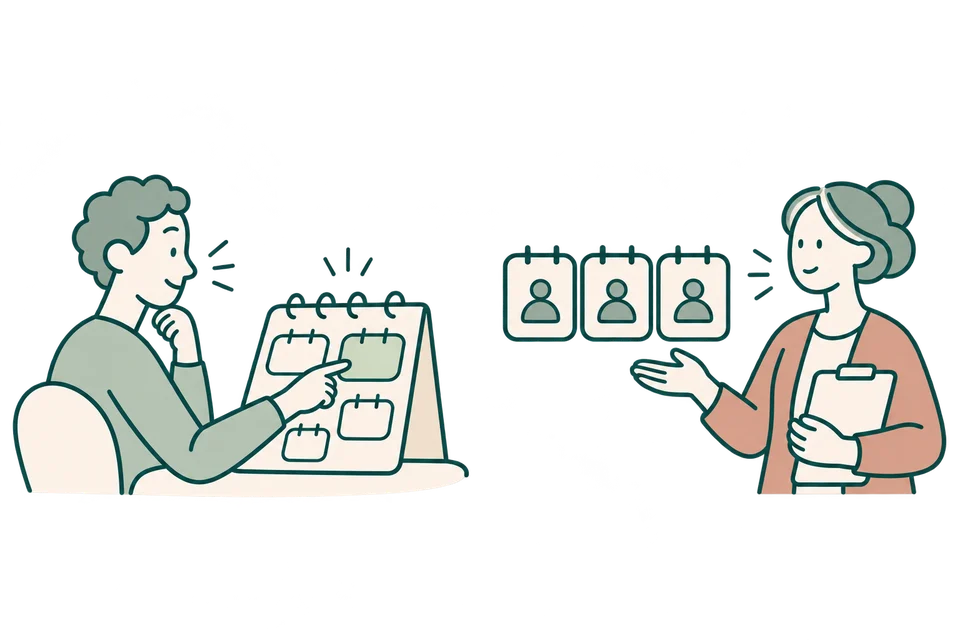
Free availability
An eligible person chooses an offered time.
Patient appointment series
Specific dates are reserved for the same person.
Schematic examples; no fixed number of appointments is implied.
Copying availability does not create a patient series. A series is arranged separately; its interval follows its anchor date.
8. Add holidays and blocked time
Enter leave and other absences as early as possible. Theravo supports both individual blocked slots and holiday periods.
Typical internal blocks include:
- annual leave
- training
- supervision
- clinical notes
- team meetings
- a private commitment
The detailed label remains internal. Patients only need to know that no appointment is available at that time.
9. Review conflict and configuration warnings
When availability for different appointment types overlaps, Theravo can show conflict or incomplete-configuration warnings. Check for:
- duplicated availability
- overlapping appointment types
- an incomplete appointment-type setup
- existing booked appointments in the affected period
- active slot holds during a payment journey
When availability is regenerated or replaced, existing appointments and active payment holds are protected. Even so, review larger changes first within a small, manageable date range.
10. Review the real patient-facing booking page
Once the calendar is ready, open the public booking page or embedded widget.
Check:
- Are only the intended appointment types shown?
- Are the correct days and times visible?
- Is internal time hidden?
- Do existing patients see the right follow-up availability in the portal?
- Are duration, location and description correct?
- Does the page work well on a mobile phone?
- Are holiday periods unavailable?
Do not rely only on the internal calendar. What matters is what patients can actually see and select.
Example: preparing a typical week
A therapist works from Monday to Thursday.
- Monday morning: two public initial consultations
- Monday to Thursday: protected follow-up availability in the patient portal
- Wednesday lunchtime: internal time for clinical notes
- Thursday evening: one public online initial consultation
- Friday: no published availability
The therapist first configures the appointment types, then adds available times in the calendar, copies the week across the next six weeks and finally blocks annual leave and training days.
This produces a reliable starting schedule without making the whole working day public.
Checklist before publishing
- Appointment types are fully configured.
- Calendar display hours and grid interval fit the working day.
- Duration and buffer for each appointment type have been checked.
- Public, portal, Email Assistant and internal availability are clearly separated.
- One typical week has been tested before copying.
- Copied weeks have been checked for holidays and leave.
- Recurring patient appointments are not confused with free availability.
- Conflict warnings have been resolved.
- Existing appointments remain unchanged.
- The public booking page has been checked on desktop and mobile.
Use even and odd weeks correctly
Changing the display: Week and month views and the appointment-type selection change what the calendar displays. The current calendar has no separate display filter for even or odd weeks. The Calendar weeks selector belongs to copying, not viewing.
Copying availability: Open Calendar → Week → Edit availability. Under Advanced, select the active appointment types that allow manual editing and open a checked source week. In Copy current week, choose the Target period, then Calendar weeks → Even calendar weeks only or Odd calendar weeks only. Select Copy week to create available times in the matching ISO calendar weeks within that period.
This replaces existing free availability for the selected appointment types in the matching target weeks. Booked appointments and protected time remain; overlaps are skipped. Review at least one even and one odd week and check holidays. For two different weekly patterns, prepare each source week separately and copy it with the appropriate selection. This is a finite copy operation, not an indefinitely repeating schedule.
Arranging an appointment series: Copied availability is not assigned to a patient. A specific series is configured separately through Fixed appointment offers, where enabled for the practice: choose the patient and appointment type, set the anchor date and time, select Appointment frequency → Every two weeks, then Review preview. Concrete patient appointments follow the supported offer and acceptance process. A two-week interval follows its anchor date and is not the same as even or odd ISO weeks.
Copy a weekly pattern into selected weeks
Copy a checked weekly pattern into matching even or odd calendar weeks within a chosen period.

Even calendar weeks only
Selected target period
Odd week
BUnchangedEven week
ACopied from sourceOdd week
BUnchangedEven week
ACopied from sourceSchematic example: four selected weeks.
A finite copy of free availability. Booked and protected time remains; copying does not create patient appointments.
Frequently asked questions
Do I need to connect my private Google or Outlook calendar?
No. Theravo uses its own internal schedule and does not currently synchronise private Google or Outlook calendars.
Can I make times available only to existing patients?
Yes. Follow-up availability can be limited to the patient portal when the appointment type is configured accordingly.
Can I copy a complete week?
Yes. Individual slots, days and whole weeks can be copied. Availability can also be generated across a selected date range.
What happens to existing appointments if I regenerate availability?
Existing booked appointments and active payment holds are protected. Larger changes should still be reviewed carefully.
Can I edit only one appointment in a recurring series?
Yes. Depending on the action, you can edit one occurrence, all future occurrences or the whole series.
Does an appointment type automatically create availability?
No. The appointment type defines the rules and characteristics. Free times are then added or generated in the calendar.